
Panel
The AIObox Panel
Account, usage, prompts and macros inside every provider window.
What is the panel?
A small panel on every provider window AIObox opens, custom providers included, at the bottom center until you drag it elsewhere. It tells you which profile and account you are in, how much room it has, and holds your prompts and the macros that apply.
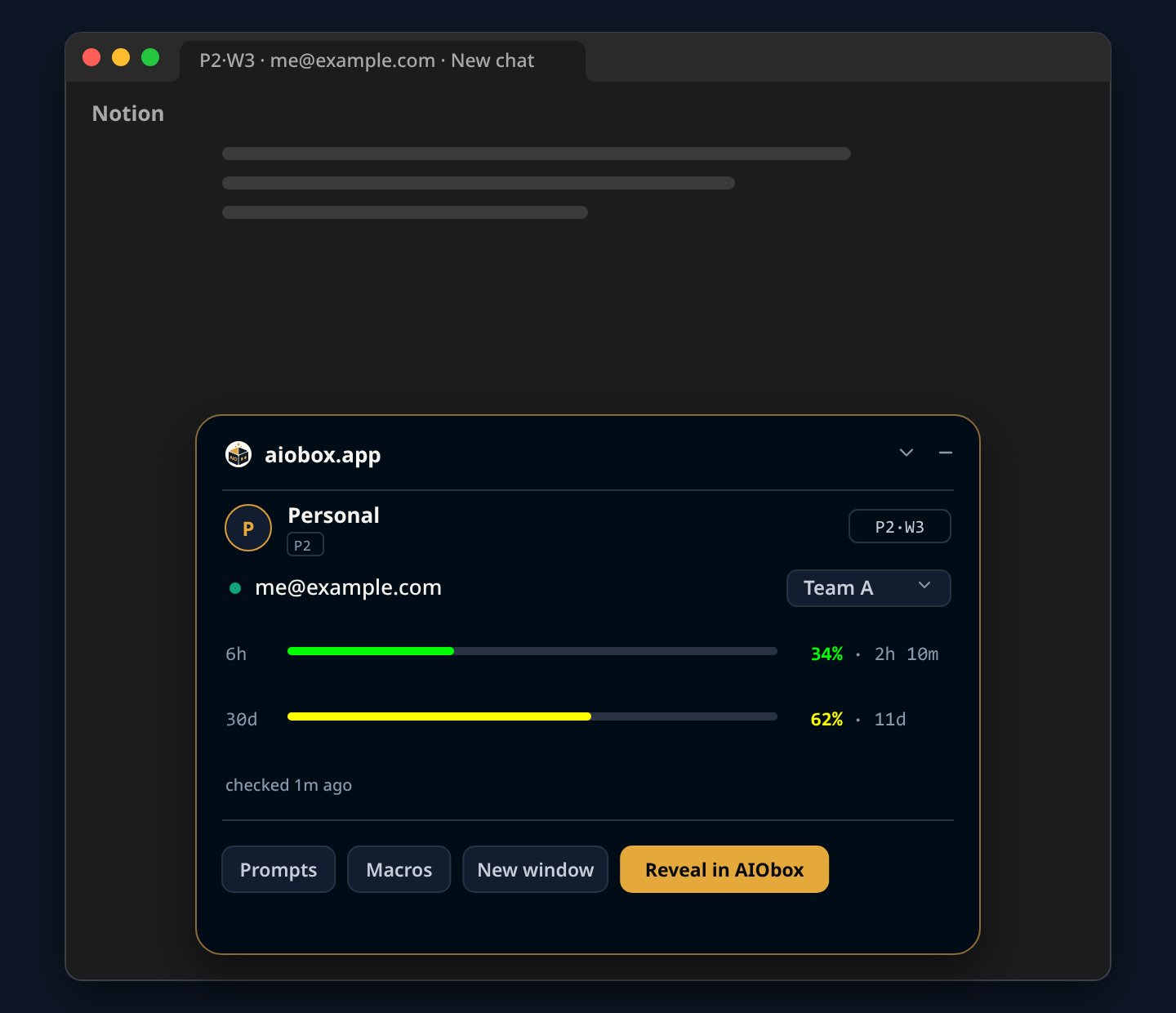
Which sizes does it have?
- Icon: a small icon that stays out of the way.
- Mini: one line with the account and its usage.
- Full: usage with Refresh, prompts, macros and window actions.
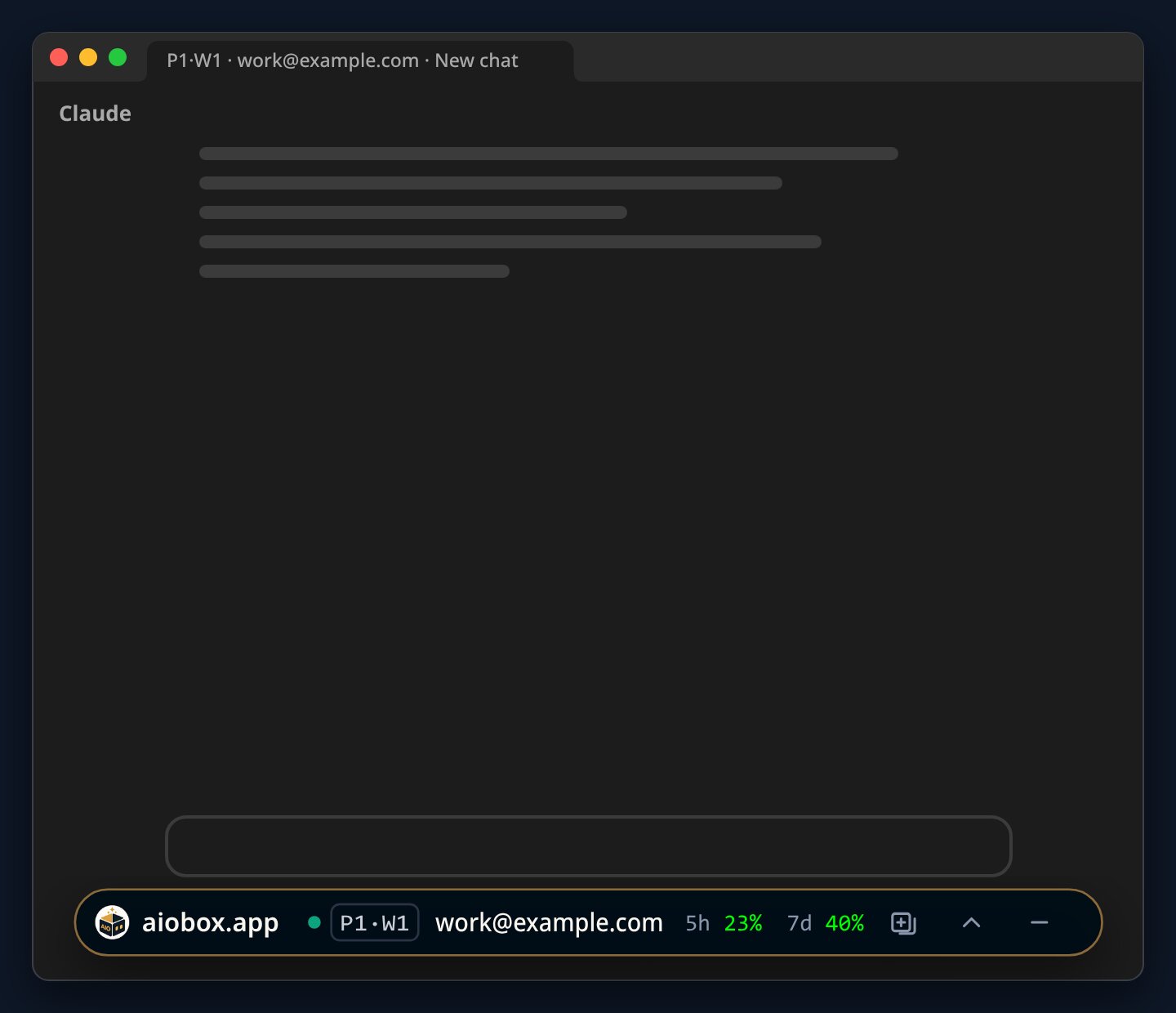
The panel remembers its size and place for each provider.
What can I do from it?
- Prompts: search your library and click one. On Notion AI it goes into the chat box without being sent; elsewhere it is copied, ready to paste.
- Macros: run that provider's macros for this window. The info button says what each one does, and a macro with several ways to run shows a select.
- Window: open a new window in the same profile, or press Reveal in AIObox to jump to this profile in the app.
- Settings: the gear on Prompts or Macros opens that page in AIObox.
What if AIObox is closed?
The panel says it is offline and keeps the last values it knew, so you are never shown made up numbers.